Connect to GameDrive from unity engine
How to install GameDrive's Unity SDK?
-
Install GameDrive's Unity SDK
Clone / Download untiy sample project the sample project from github. This project that coming with .unitypackage in /export-unitypackages/GameDrive.unitypackage.
If you just want to install the sdk, download latest release from github and import .unitypackage to your exist Unity project
-
Setup GameDrive's configuration.
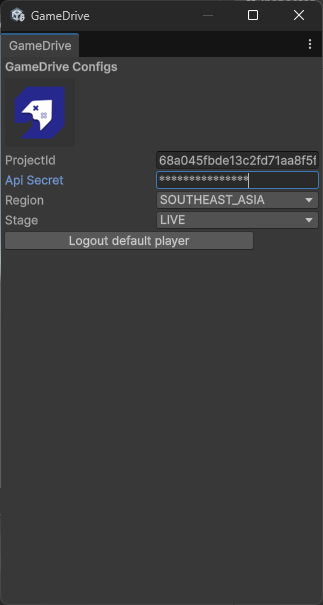
After open the clone project from step1. on Unity select Window->GameDrive to open GameDrive Setting editor up
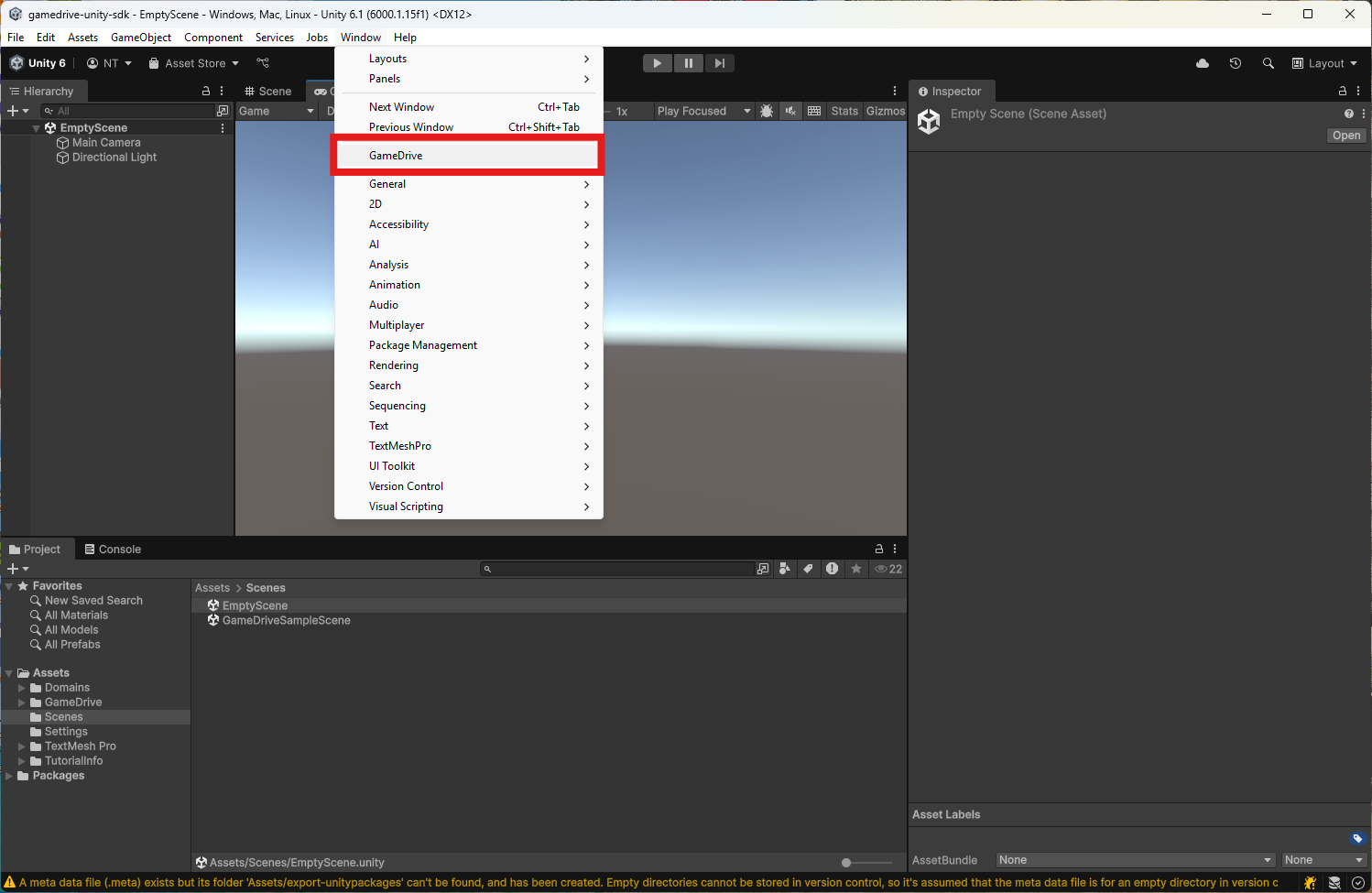
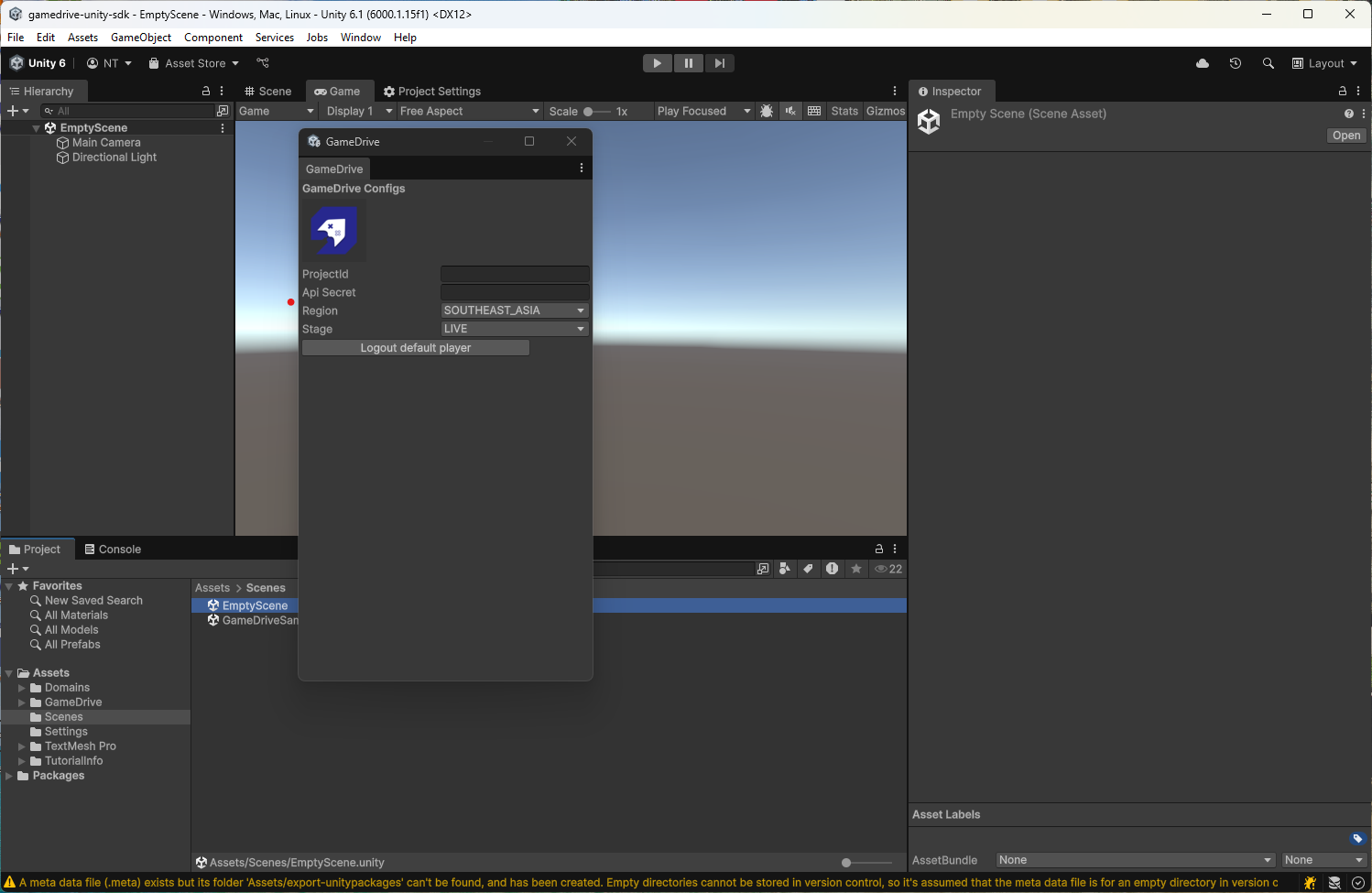
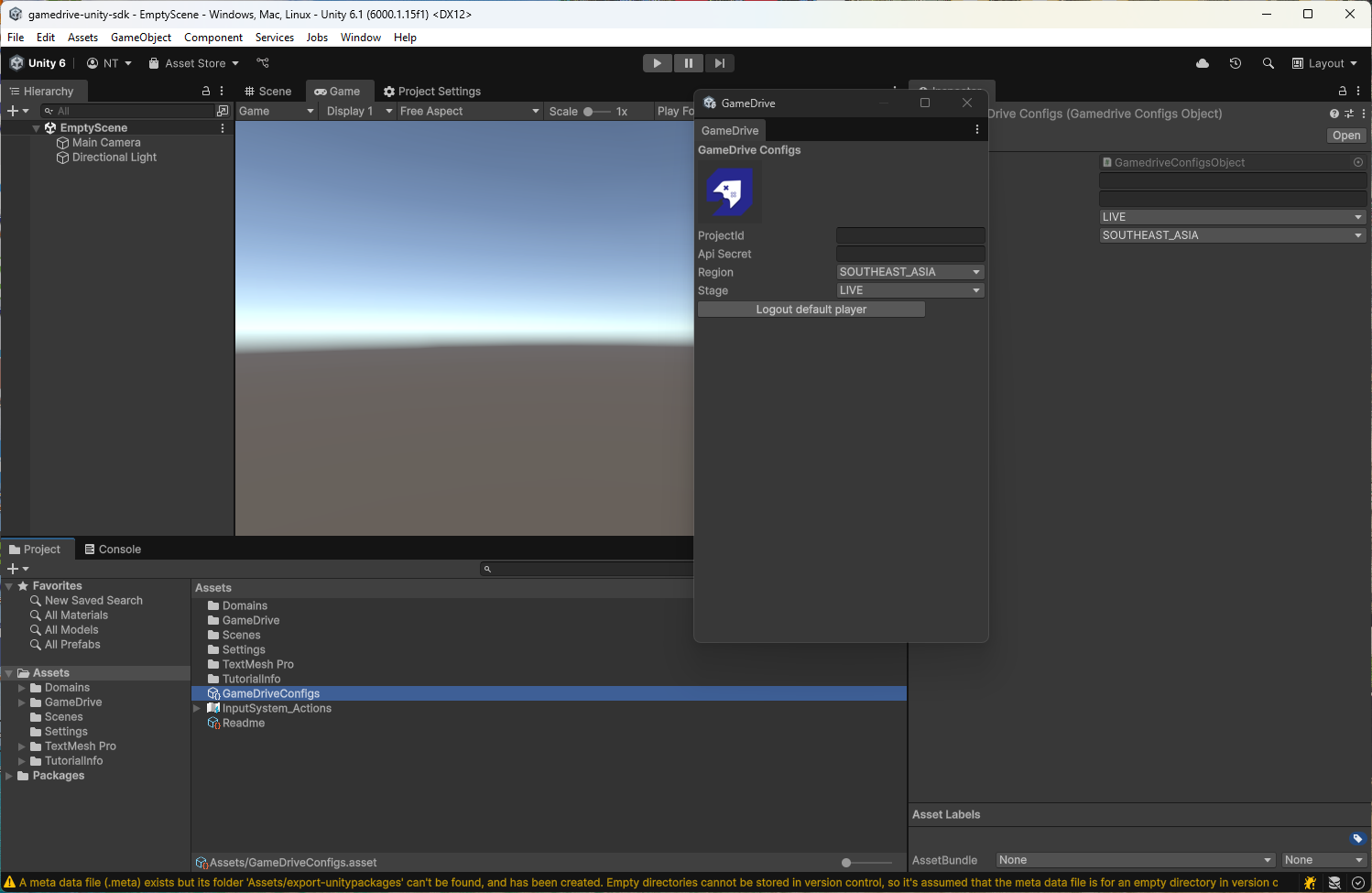
This step will auto generate ScriptableObject on Assets/GameDriveConfigs.asset automatically. The ScriptableObject will store all of GameDrive's configuration.
Go to ProjectInfo on the gamedrive console webpage
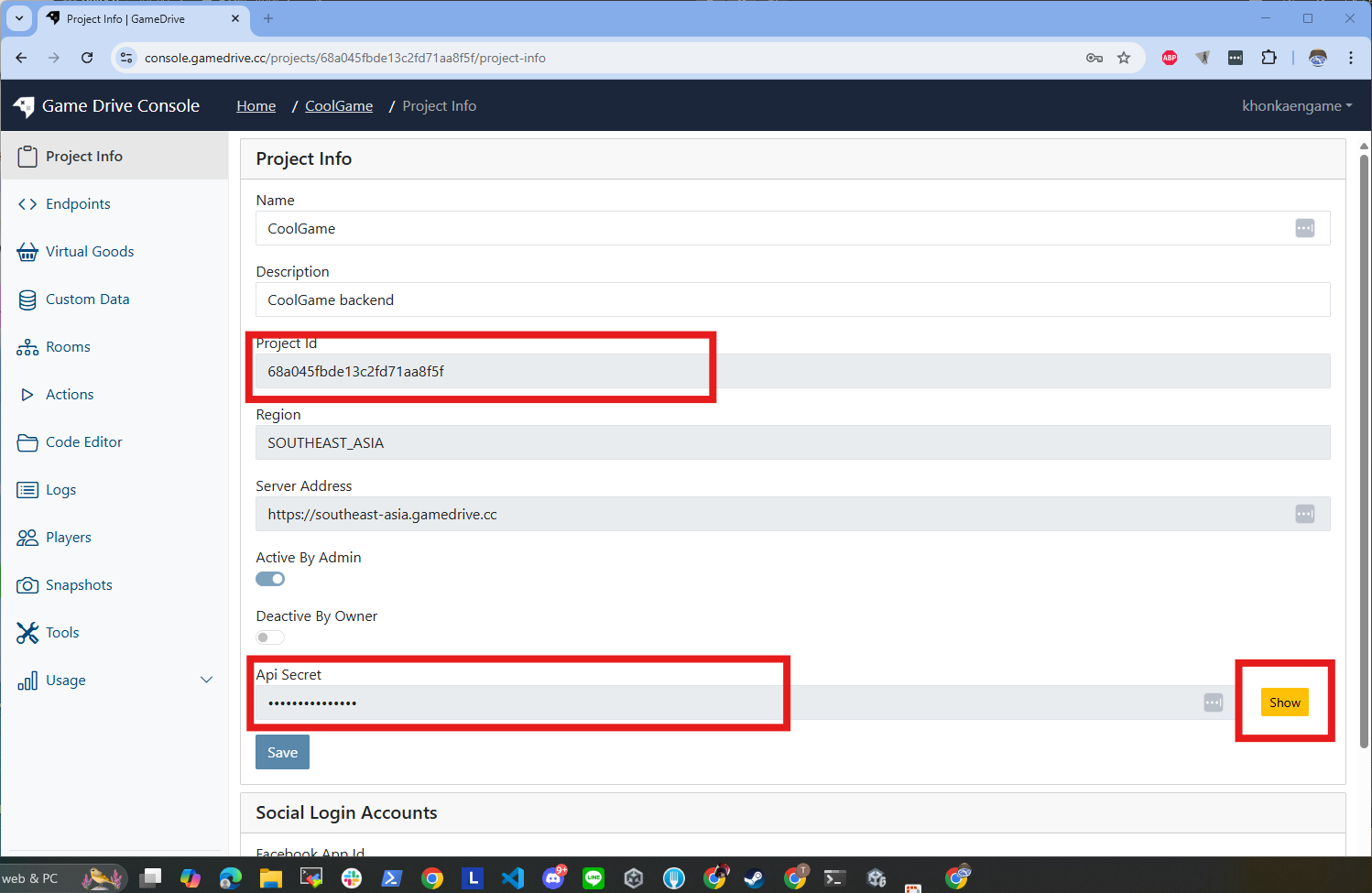
Copy project Id and ApiSecret and input into GameDrive configs window
How to use basic GameDrive's SDK?
-
Open sameple scene and try login player to gamedrive service.
Open scene at
Assets/Scenes/GameDriveSampleSceneand see what inside.GameDrive required initialize once.
In this scene we use GameDriveInitializerGameObject as a helper to initilize GameDrive system.
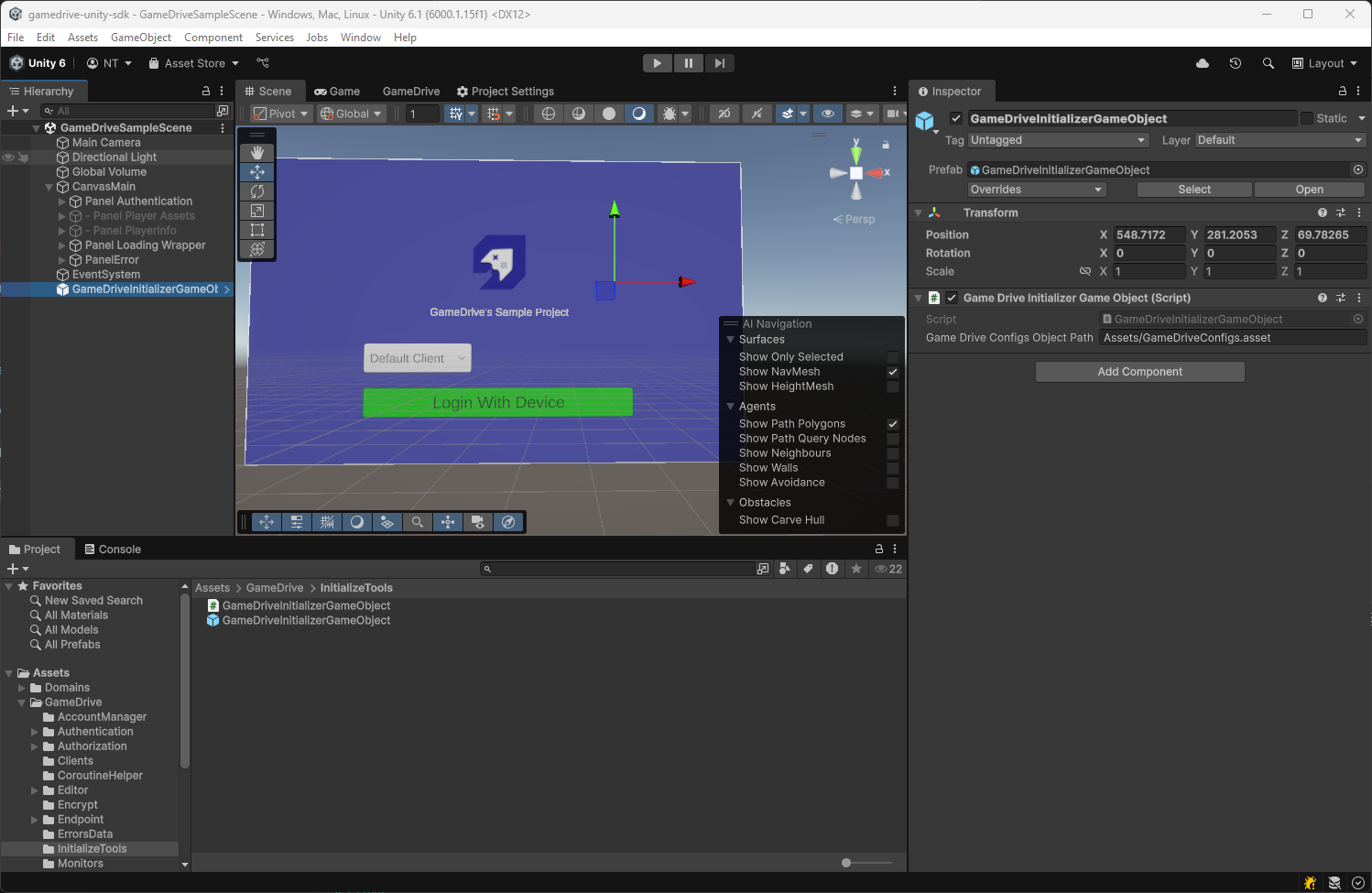
For your own game, you can just add this helper prefabs into your very first scene of the game.
-
Login player.
Press Play button the run the scene
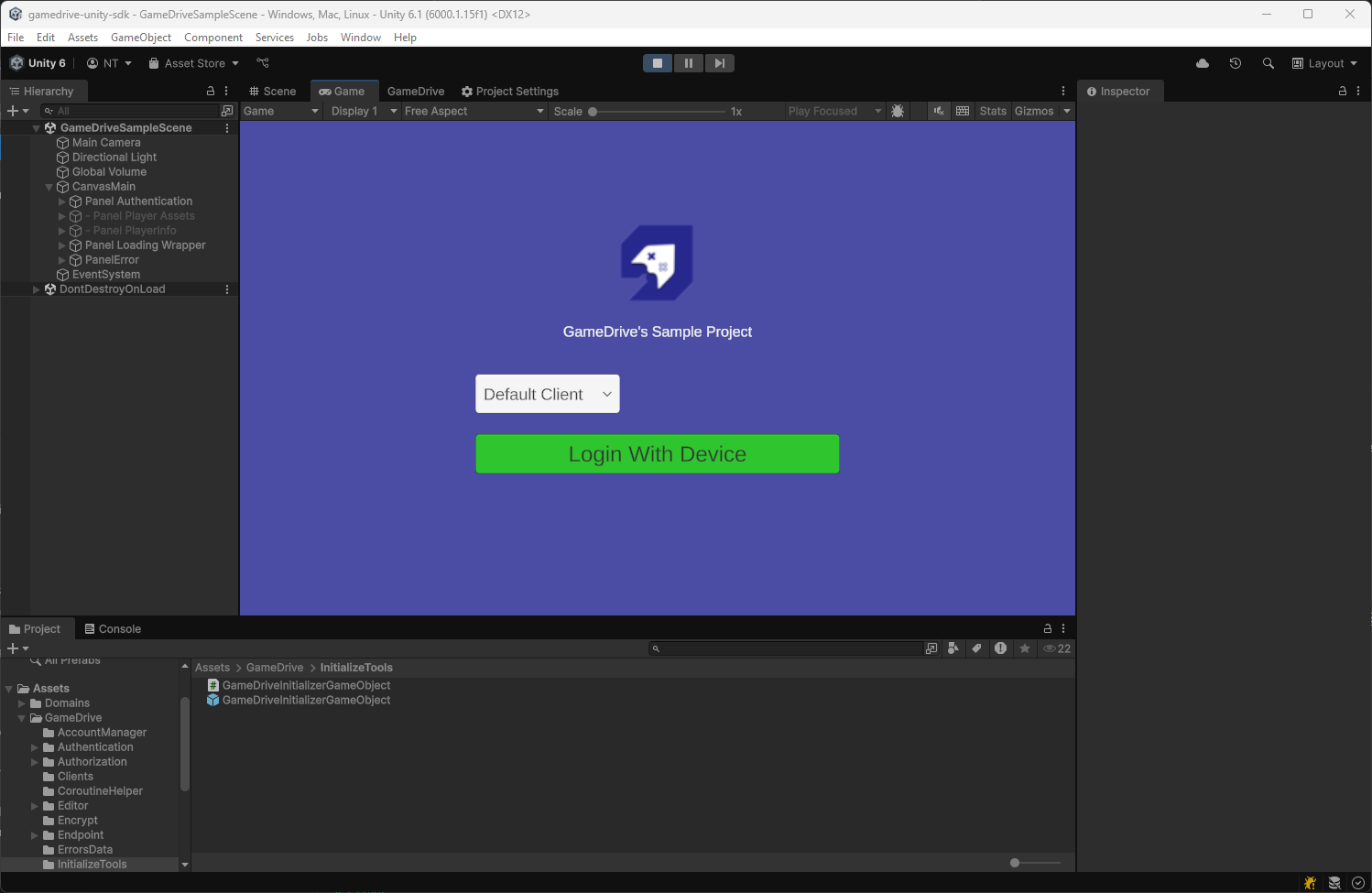
The sdk support multiple clients usage on one game instance. This helpful for test multiple players on single device. In common case, we just need the Default Client.
The code handle loggin is show right here in script PanelAuthentication.cs
private void OnButtonSignWithDeviceClicked()
{
   GameDrive.Authentication.LoginWithDevice((GameDrive.LoggedInPlayer playerInfo) =>
   {
      //Handle login success
   }, (GameDrive.ErrorSimple error) =>
   {
      //Handle login error
   });
}
Press Login With Device button to login, it will switch to Player Assets and Player Info UI.
-
Use endpoints to create or update and get player's assets
Make sure we already have endpoints name createOrUpdatePlayerAssets and getPlayerAssets. If still missing, go back to Storing data via Custom Data. And also, make sure to create a snapshot and publish it to Live stage.
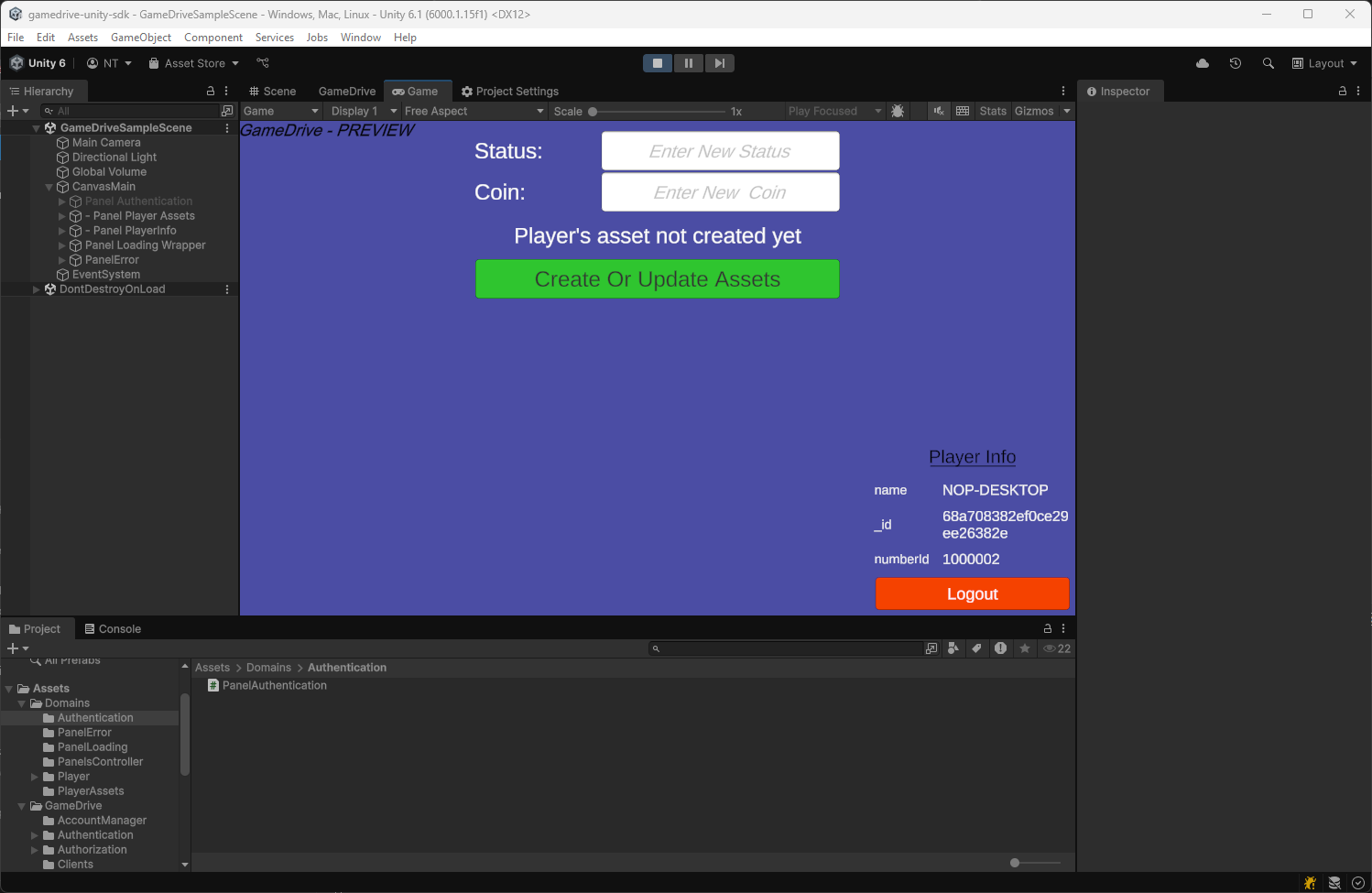
If every thing setup correctly, you will see Player Asset and Player Info UI like this show up.
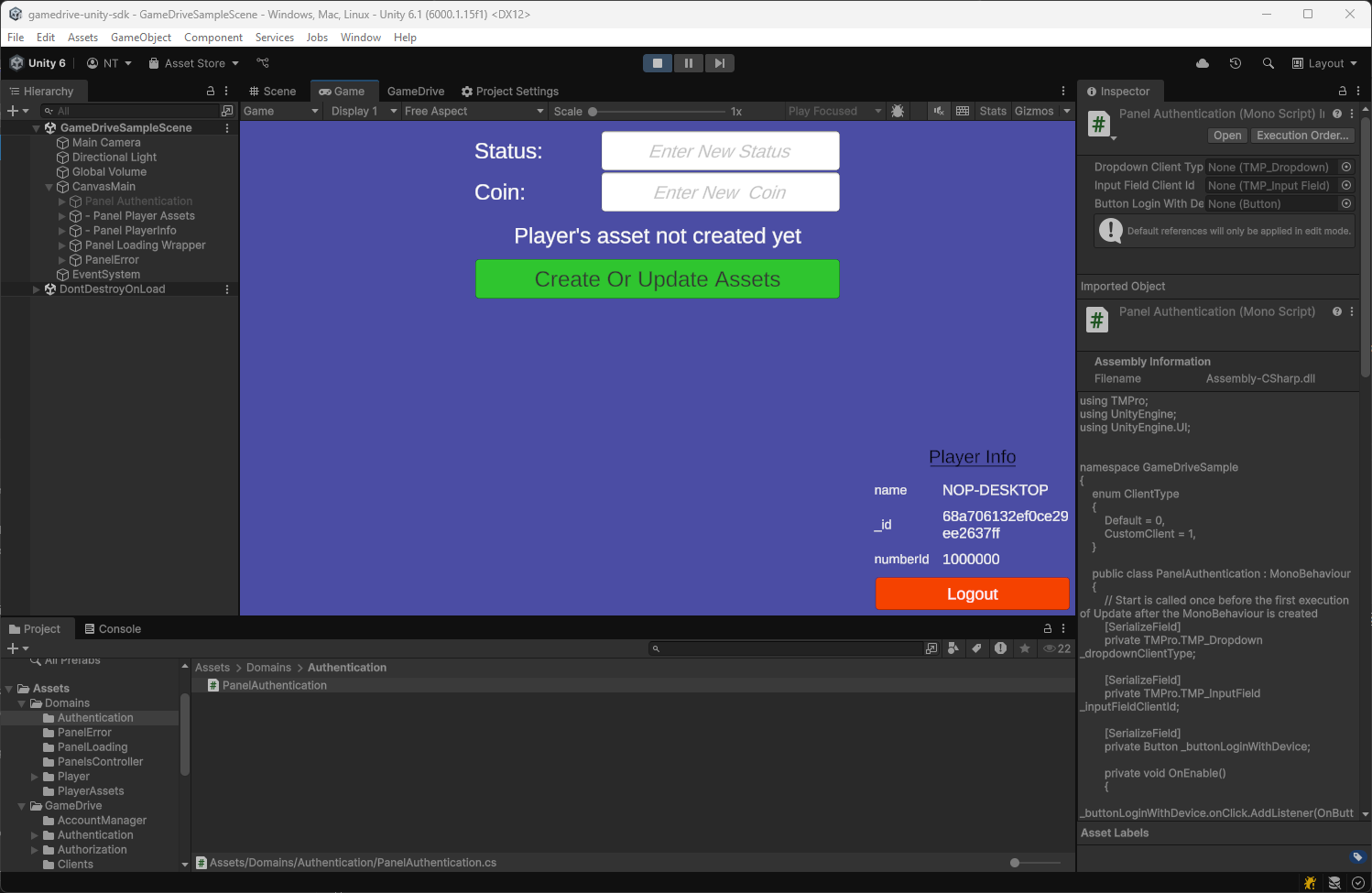
Otherwise, checkout the Unity log console to see errors.
Check file PanelPlayerAssets.cs to see how to write code to handle endpoints. Here is the example of calling createOrUpdatePlayerAsset endpoint
[Serializable]
public class PlayerAssetData
{
   public string status;
   public string coin;
}

private void OnButtonSetScoreClicked(){
   GameDrive.Endpoint createOrUpdatePlayerAssetsEndpoint = new GameDrive.Endpoint("createOrUpdatePlayerAssets");
   string status = "new_status";
   int coin = 99;

   //Since our Endpoints on the web console definded 2 params be status is the first and coint is the second. We need to set arguments follow by the order
   createOrUpdatePlayerAssetsEndpoint.SetArguments(status, coin);

   createOrUpdatePlayerAssetsEndpoint.SendRequest<PlayerAssetData>((data) =>
   {
         //handle success
   }, (GameDrive.ErrorSimple error) =>
   {
         //Handle error
   });
}
Input status and coin value and click Create Or Update Assets button to see the result.
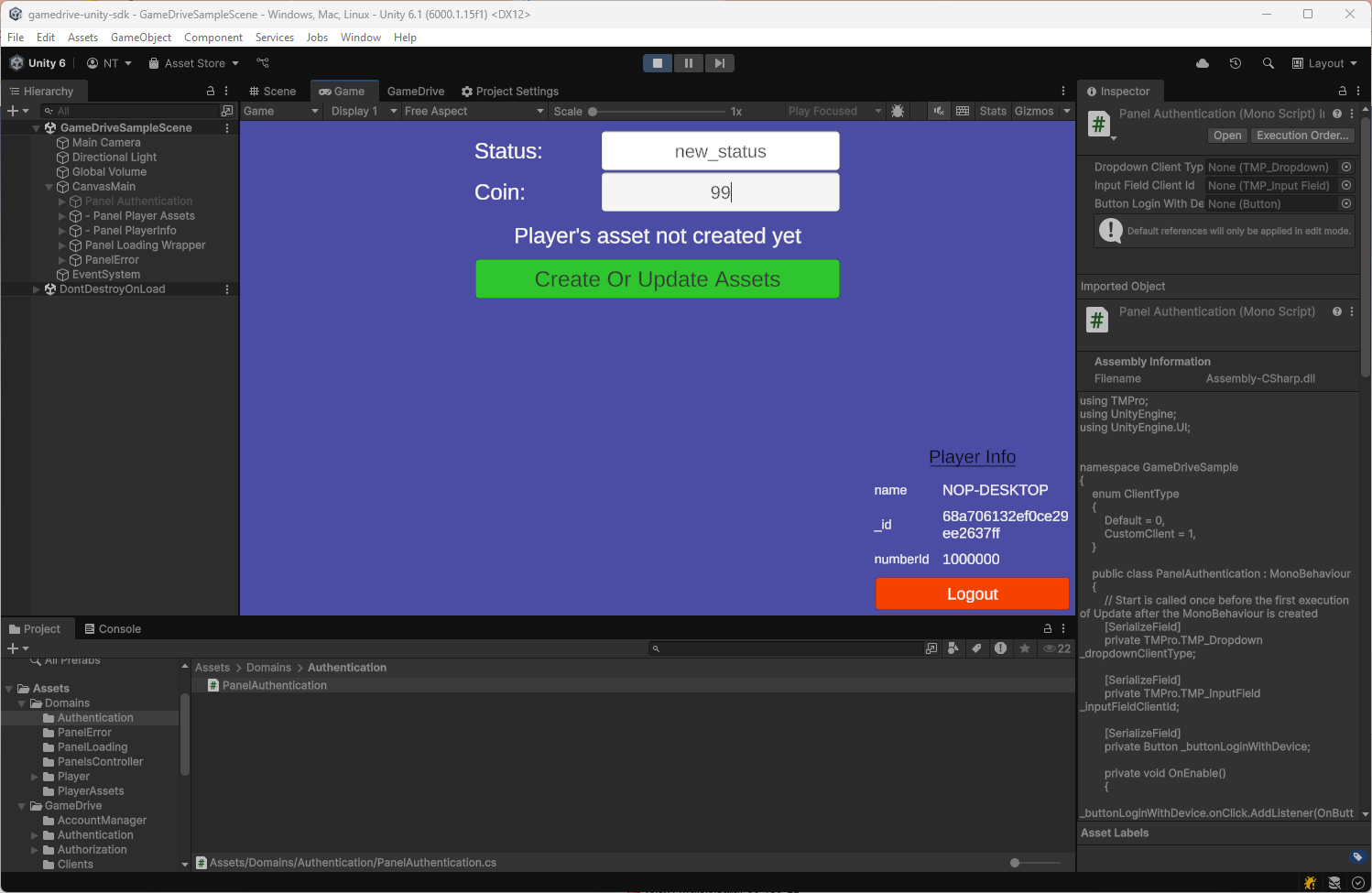
You will see some value changes
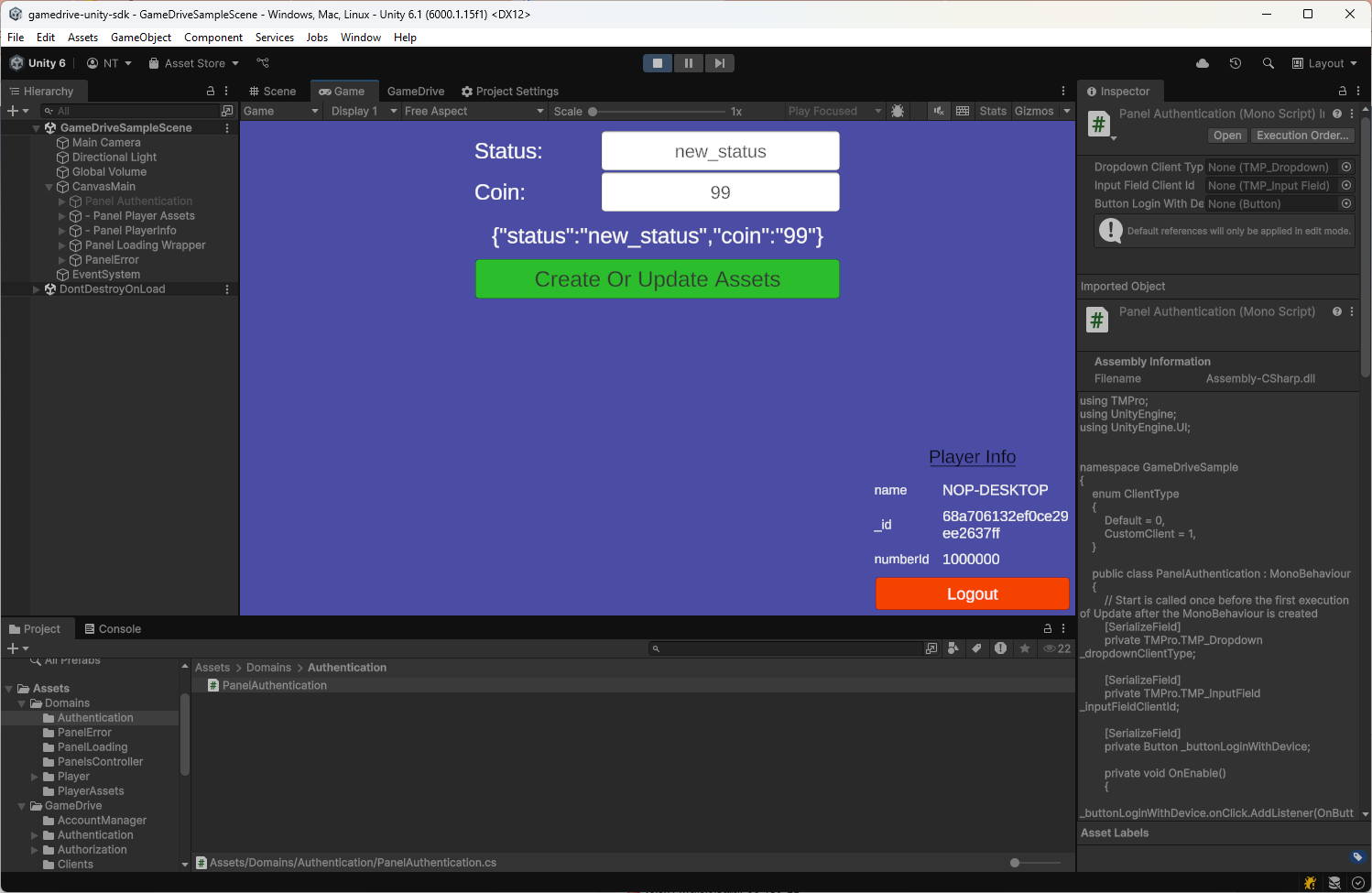
Let's try change values and press Create Or Update Assets button again, you will see the corresponding changes.
Try to logout and login again. You will see the latest updated player's assets data.
-
Swtich stage to PREVIEW and see the different.
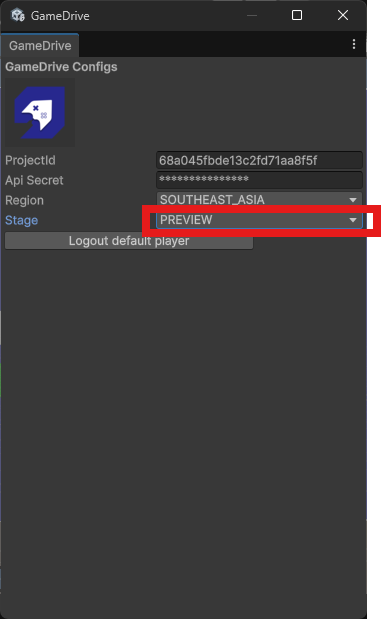
Stop the running game and open the GameDrive window.
Change stage from LIVE to PREVIEW.
Play the game again.
You will see the text "GameDrive - PREVIEW" show up on top left of the screen. This notify you are using PREVIEW stage.
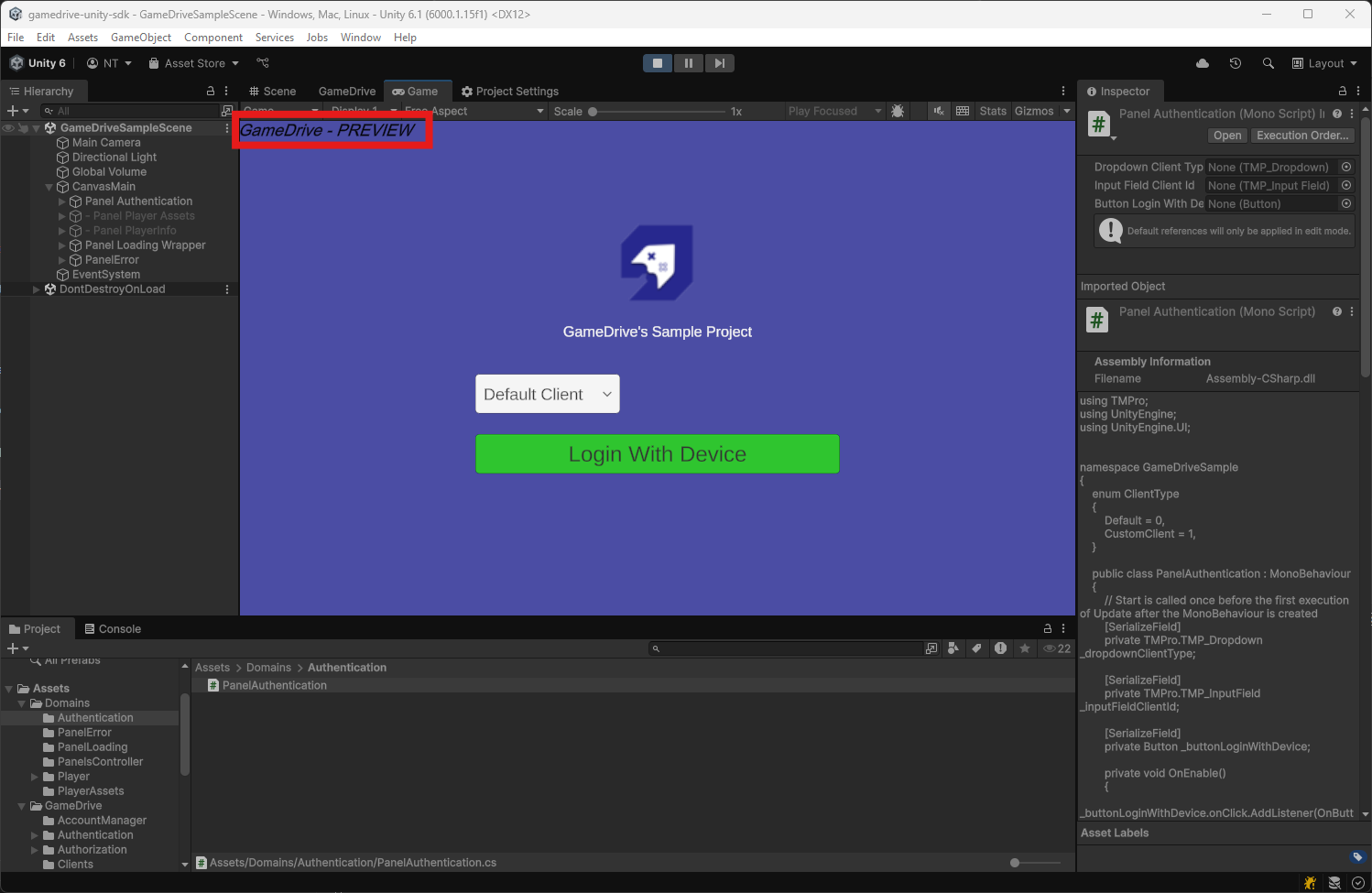
Press Login With Device again with PREVIEW stage.
You will see the player's assets data is different from LIVE stage since they are separated environment.
Does GameDrive support other game engine?
Not yet. righ now we are support Unity engine only. But other game engine SDKs are on the plan.